Handle scanner or hardware downtime
Use this when entry scanners or turnstiles stop working while customers are arriving.
Scanning is done by the connected entry hardware; KORONA Event keeps working during an outage. Staff switch to manual lookup and check-in, and reconcile once hardware is back.
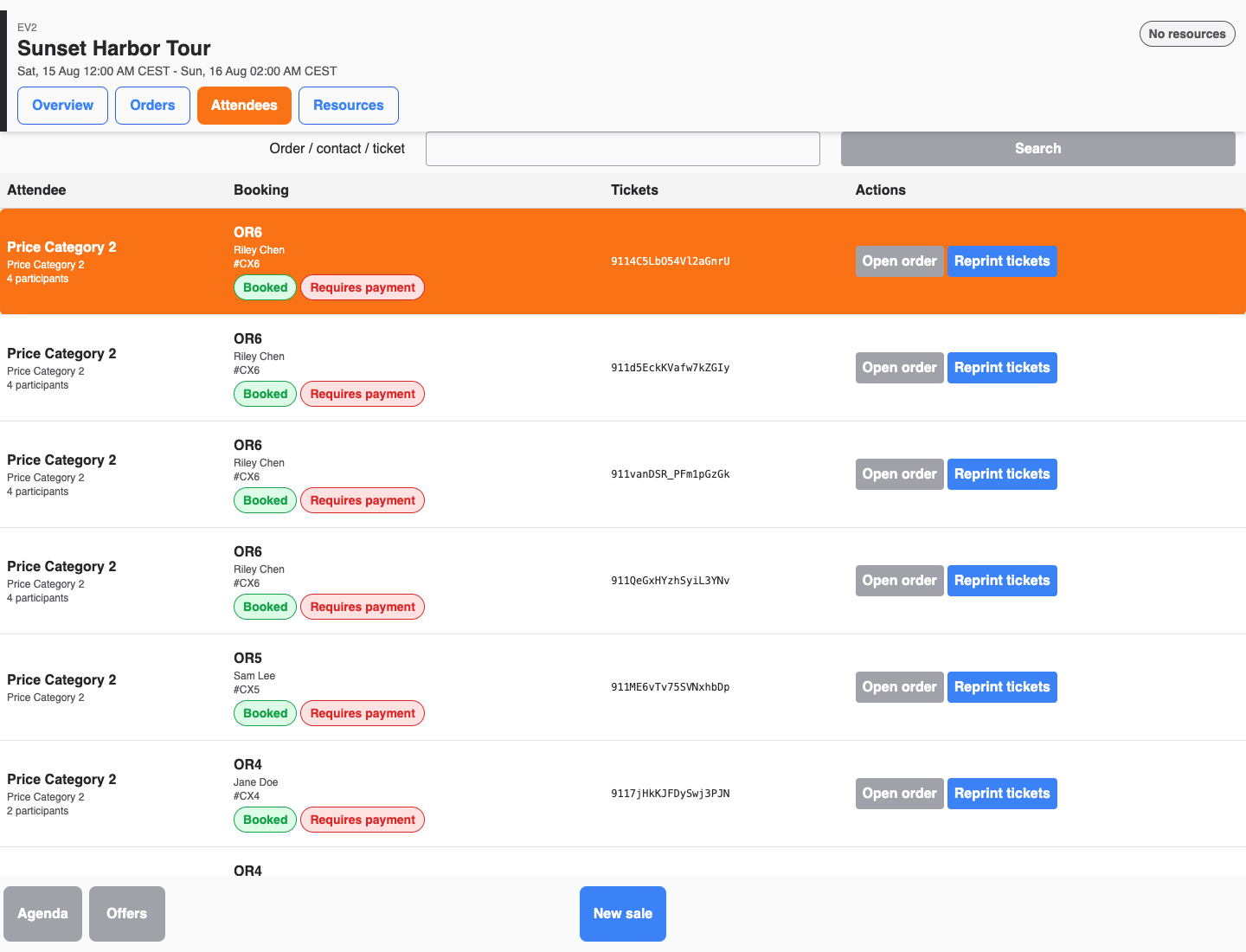
Before you start
Confirm:
- staff can open the POS Agenda attendee list and the back office Sales > Attendees view
- a supervisor decides the admission policy during the outage, for example whether visual ticket checks are enough at peak load
- someone notes the start time of the outage
Switch to manual admission
- At the gate, ask customers to show their ticket, QR code, or order confirmation.
- Look each attendee up in the POS Agenda attendee list by name or ticket number, or under Sales > Attendees in the back office.
- Confirm the event, date, time, and ticket state on the attendee.
- Record the entry in the back office with Check in, or Check in selected for a group.
- If queue pressure makes immediate check-in impossible, record each attendee or ticket number in a manual log and reconcile those identifiers later. If your emergency process records only a tally, it can reconcile the total headcount but cannot identify or correct individual attendance in KORONA Event.
Bring the hardware back
- Restart or replace the scanner hardware according to the entry system's own procedures.
- In the back office, open Admin > Integrations and check the KORONA.entry Entry webhooks status: it should show Active with a recent last-received event once scans flow again.
- Run a test scan on a staff ticket and confirm the event appears on the attendee detail.
Reconcile after the outage
- Open Sales > Attendees, filter by the event, and use the Checked in / Not checked in filter options.
- Match the attendee or ticket identifiers in the manual log against Not checked in attendees and check in each person you admitted manually. If the fallback captured only a tally, record the count difference in the outage report; do not guess which attendees entered.
- Where a ticket should not be usable again — for example a single-entry ticket admitted by hand — check the ticket panel and ask a supervisor to lock or use up the entry as your policy requires.
- Save the outage window and device details for follow-up before the next event.
Expected result
Customers keep entering during the outage, every identifier-recorded admission ends up as a check-in, and any tally-only gap is documented separately instead of being assigned to individual attendees.
Troubleshooting
| Problem | What to check |
|---|---|
| Scans still missing after hardware is up | Entry webhooks status and last received event under Admin > Integrations. |
| Duplicate entries after reconciliation | Whether an attendee was both manually checked in and scanned; the ticket's last event shows the source. |
| Cannot tell who was admitted manually | The attendee's check-in details show the check-in time and source; compare with the outage window. |
