Set up equipment rental operations
Use this workflow for bikes, boats, audio guides, rooms, or other equipment where availability depends on inventory and time.
Before you start
Prepare:
- equipment types and quantities
- rental duration and return buffer
- damaged, maintenance, or private-use rules
- customer-facing price categories
- staff check-out and check-in process
- whether rentals are sold online, at the POS, or both
Create rental inventory
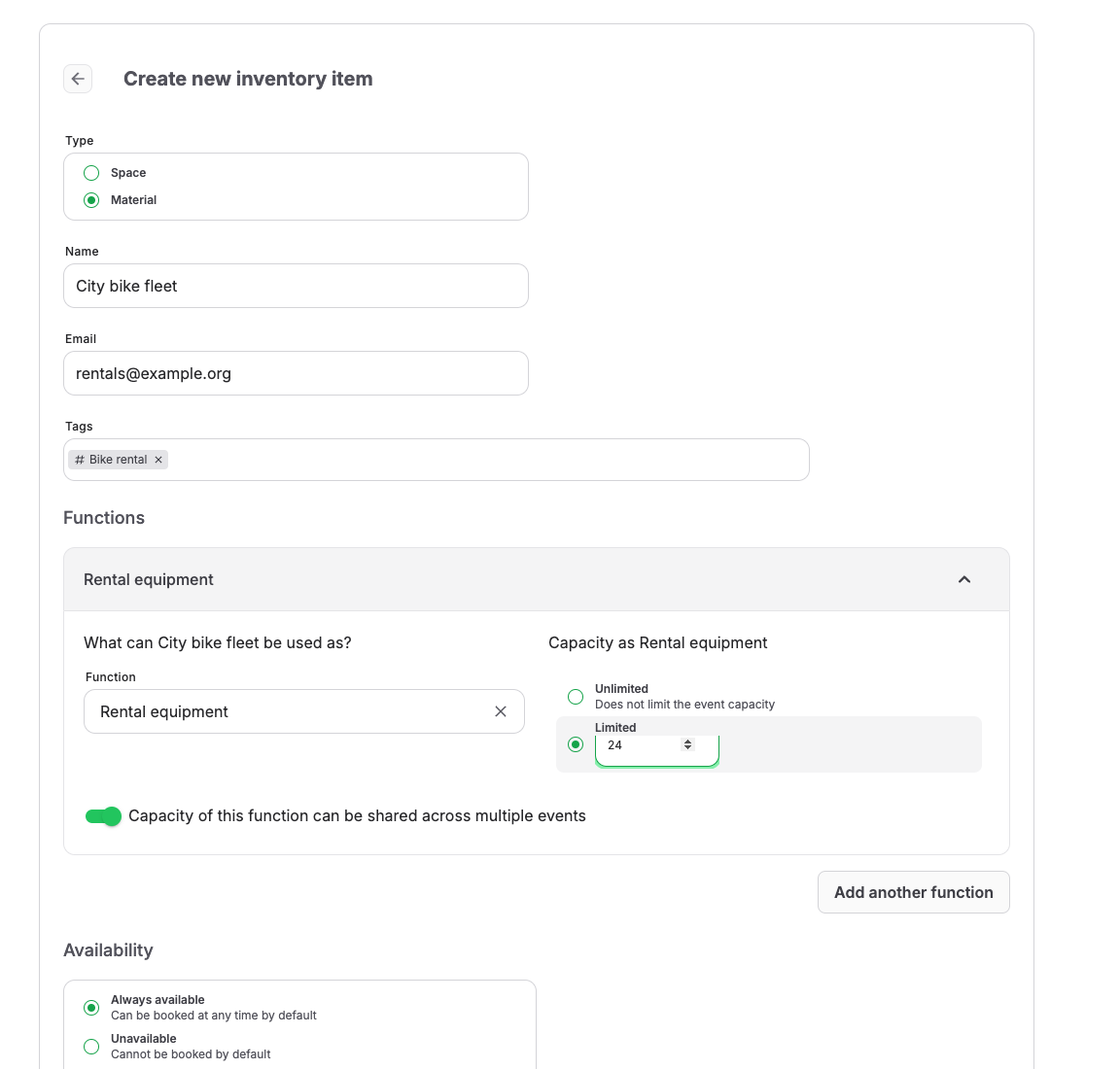
In the back office, open Resources > Inventory and select Create.
Choose the Type:
| Option | Use it for |
|---|---|
| Material | Moveable items such as bikes, helmets, devices, or rental kits. |
| Space | Rooms, courts, tables, docks, or fixed locations. |
Enter Name and Email if a team mailbox should receive resource communication.
Use Tags to label the item type, such as Bike rental or Audio guide. Add Capacity for how many units can be used at the same time. Set Availability to Always available, or define Available hours (Open hours for spaces).
Connect inventory to sellable time slots
Create the sellable offer as an event template or admission when customers choose time slots. Open Required resources and select Add requirement.
Search for the rental inventory item or a resource tag. Enter Quantity when each booking needs more than one unit.
Use offsets when the item must be blocked before pickup or after return. For example, add a post-event offset for cleaning or charging.
Prepare online and POS sales
Open Prices and add the rental price categories customers or staff need.
Open Sales channels and enable:
- Online shop for customer booking
- POS for counter rental sales
- Back-office for staff-assisted bookings
Complete a test rental in each channel you plan to use.
Operate check-out and check-in
At pickup, staff should confirm the order, customer name, rental time, item type, quantity, and any deposit or damage rule.
At return, mark the operational handoff in your local process and check whether the next slot still has enough available inventory.
Expected result
Customers or staff can book rental slots only when enough inventory is available, and operations can see which equipment type is needed for each booking.
Troubleshooting
| Problem | What to check |
|---|---|
| Rental slot is unavailable | Resource capacity, existing bookings, working hours, maintenance blocks, offsets, and event capacity. |
| POS can sell but online shop cannot | Sales channels, shop visibility, active online prices, and checkout fields. |
| Too many rentals are sold | Resource requirement quantity, shareable capacity, overlapping time slots, and offsets. |
| Late return affects the next booking | Add operational buffer, block the resource manually, or reduce availability before the next slot sells. |
