Handle a ticket that will not scan
Symptom: the entry scanner rejects a ticket, or the code cannot be read at all, and a customer is waiting.
Work through the checks in order. All evidence lives in the back office attendee detail; the POS attendee list is for lookup only.
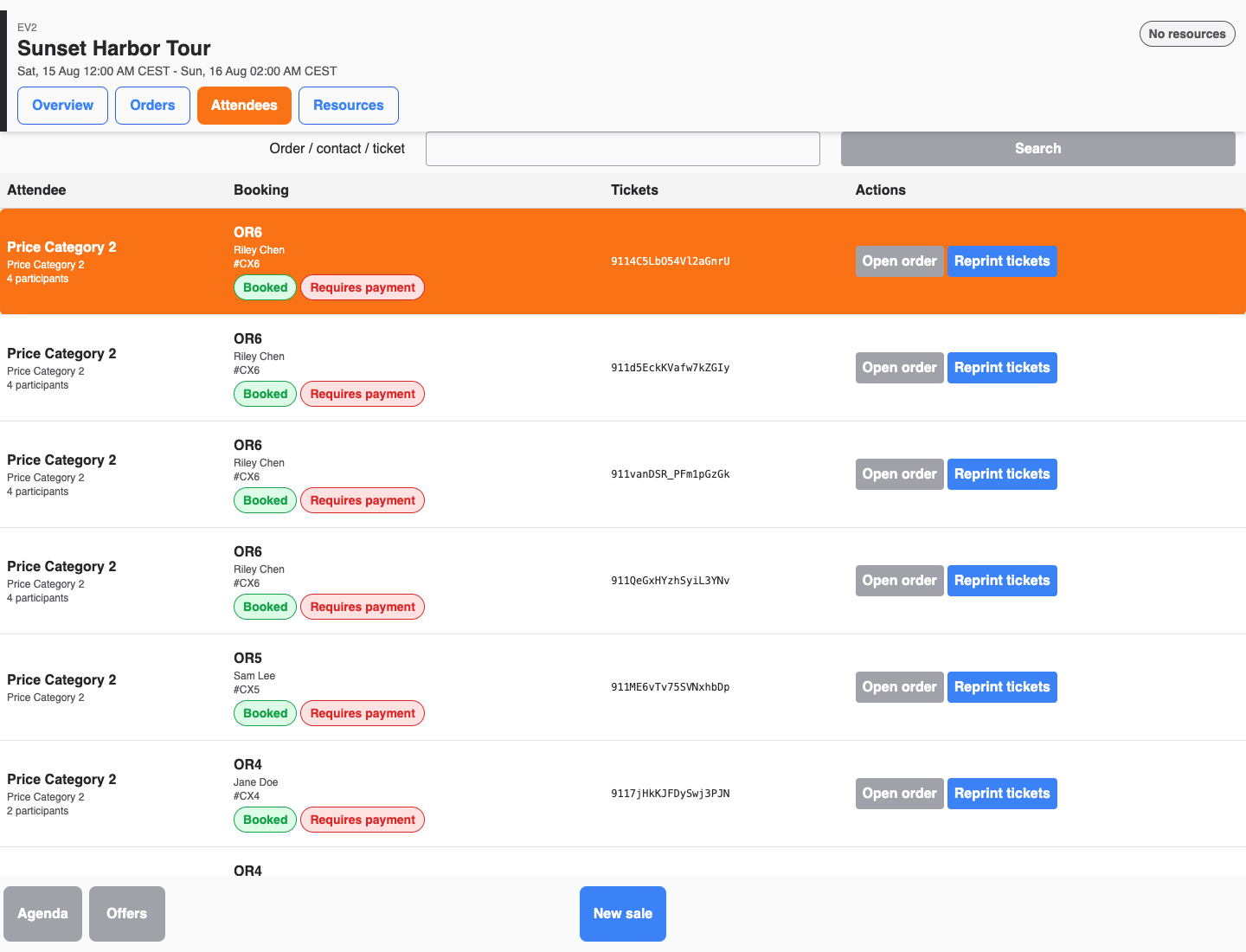
1. Look the attendee up
- In the back office, open Sales > Attendees (or search the POS attendee list under queue pressure).
- Search by ticket number or customer name, or filter by event.
- Open the attendee detail and review the Tickets panel.
If no attendee is found, check the order and customer instead, confirm the correct event and date, and collect the order confirmation details before escalating.
2. Read the ticket state and last event
The ticket panel shows the ticket's status, its validity, and the last recorded event with a timestamp, such as Entry recorded or Entry used up. The full set of ticket states is embedded in Scan tickets at the entrance.
3. Match the denial reason
If the ticket cannot be checked in, the panel shows the reason:
| Reason | What to check |
|---|---|
| Already checked in | The last recorded event and its time. Look for a group member using the same code or a duplicate scan at another gate. |
| Invalid validity | The ticket's valid-from and valid-to values against today's date and time, and the event date on the order. |
| Ticket is not active | The ticket status — pending, locked, expired, or cancelled tickets cannot enter. A locked ticket shows its lock reason. |
| Used up | The entry quantity: the ticket has no remaining entries. |
4. Check external or KORONA tickets
Tickets synced from an external system show their source, such as KORONA.entry or Legacy ticket, in the ticket panel. If an externally issued ticket number does not match, a supervisor can correct it through the attendee's Activations section, which exists for manual ticket-number corrections and externally issued tickets. If the gate does not know a ticket that looks fine in KORONA Event, check the entry integration sync under Admin > Integrations.
5. Fall back to manual check-in
When the ticket is valid and the customer should enter:
- On the attendee detail, select Check in, or Check in selected for a group.
- If required attendee information is missing, KORONA Event asks whether to check in anyway; follow your venue's policy.
- If check-in is refused, read the denial reason again before deciding — do not admit against Already checked in or a cancelled order without a supervisor.
Expected result
You can name the exact reason the ticket was rejected, and either check the attendee in manually or deny entry with evidence to show the customer.
