Sell tickets through self-checkout
- Last verified
- Last verified Aug 10, 2026
Use this when customers should buy tickets at an unstaffed kiosk instead of the counter or the online shop.
The self-checkout runs on a KORONA POS Next kiosk. The kiosk device is one of your points of sale, so it works like any other sales channel An offer rule that selects one or more points of sale and controls where, when, and with what channel-specific limit the offer can be sold.: it only sells offers whose sales channel rules include it. Kiosk installation on the device itself is part of the KORONA POS Next setup; ask support to enable self-checkout for your account before configuring offers.
Before you start
Confirm:
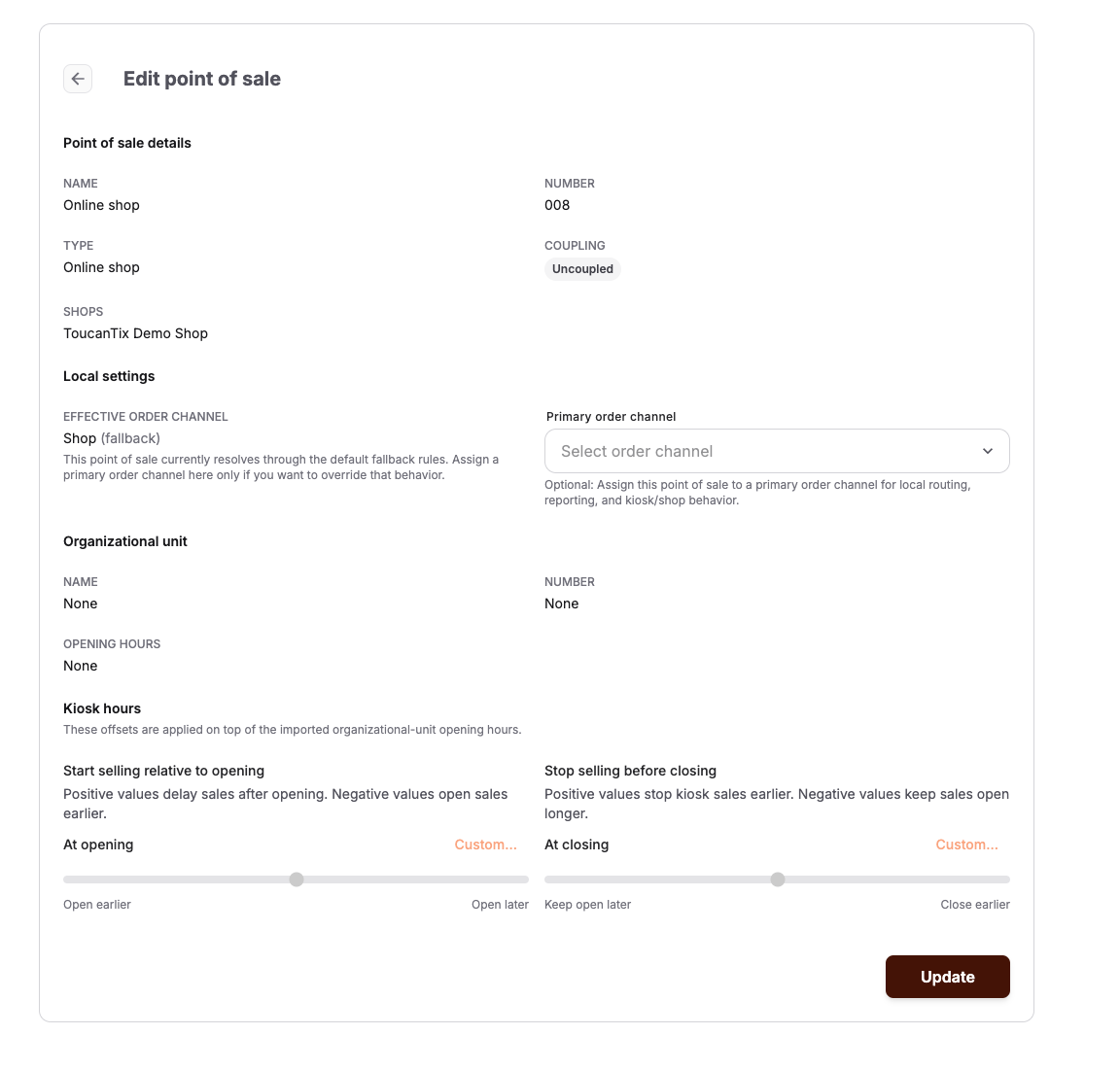
- the kiosk's point of sale appears under Settings > Points of sale and is coupled — see Connect a POS to ticket sales
- the kiosk has a working card terminal, because self-checkout payment is by card
- you know which events or admissions the kiosk should sell
Payment authorization
A kiosk's cart token identifies the order. During the transition to authenticated kiosks, a legacy client can create an on-site order by supplying the exact UUID of a physical point of sale in the same tenant. The venue must also allow on-site payment at stationary points of sale. The client then completes that order using its cart token. A POS number or automatic physical-POS selection cannot start this flow.
This temporary compatibility path is not kiosk authentication: another caller who knows the POS UUID could imitate the flow. It does not grant invoice payment or access to staff-only payment-handling transfers. Public offer or shop payment policies and the venue's public on-site payment setting remain separate; do not enable a broader public setting solely to bypass a kiosk error. If checkout cannot complete, use the staffed counter. A card-terminal payment alone does not confirm that KORONA Event has completed the order or issued its tickets.
Make offers available on the kiosk
- Open the offer under Services and select the Sales channels tab.
- Add or edit a rule so it includes the kiosk's point of sale, and check that prices are visible for that channel.
- If the offer requires additional booking information, keep required fields simple. An offer that needs required information the kiosk cannot collect, such as a file upload, is refused at the kiosk with a message that it cannot be booked there.
Kiosk opening hours
Legacy kiosks can retrieve venue hours by supplying their exact point-of-sale UUID. The point-of-sale number and automatic lookup require authenticated POS-read permission. If opening hours cannot be loaded, use the staffed counter and ask support to check the kiosk connection.
The kiosk follows the opening hours imported from KORONA for its organizational unit.
Outside these hours, the kiosk shows a closed screen with the next reopening time instead of the sales flow.
What the customer does
- The welcome screen invites the customer to touch the screen or scan an item to start.
- The customer browses the events available today, selects one, chooses a start time and quantity where applicable, and selects Book. Remaining availability is shown, and quantities beyond the available capacity are refused.
- If events are scheduled today but all of them are sold out, the kiosk shows Everything is fully booked today.
- If no event is currently bookable and the kiosk cannot confirm that every scheduled offer is sold out, it keeps the neutral message No events available today...
- Where required, the customer completes an additional-information form on screen.
- The customer can scan vouchers to redeem them; the redeemed amount reduces the total to pay.
- The customer selects Card payment and follows the instructions on the card terminal.
- What happens after payment depends on the kiosk's receipt configuration:
- With electronic receipts enabled, the kiosk offers an Electronic receipt. The customer scans a QR code to receive the receipt by email.
- With electronic receipts disabled, the kiosk prints the receipt automatically.
Printed and electronic receipts both include the KORONA Event order number so staff can match them to the order later.
A Help button calls a staff member to the kiosk, and an inactivity prompt restarts the purchase when a customer walks away mid-flow.
Expected result
Offers with the kiosk in their sales channel rules appear on the kiosk during kiosk hours, customers pay by card, and each completed purchase creates a normal order attributed to the kiosk's point of sale. Depending on the configuration, the resulting receipt is printed automatically or provided electronically, and it identifies that order by its order number.
Troubleshooting
| Problem | What to check |
|---|---|
| Kiosk shows the closed screen | The imported organizational-unit opening hours do not include the current time. Update those hours in KORONA if the kiosk should be open. |
| Kiosk says everything is booked out | Events are scheduled today, but none has remaining capacity. Check capacity and existing bookings before changing the offer. |
| Kiosk says no events are available | No offer is currently bookable. Check today's schedule, sales windows, the kiosk's sales channel assignment, visible prices, and capacity. |
| Offer is missing on the kiosk | The offer's sales channel rule includes the kiosk's point of sale, prices are visible, sales are open. |
| Offer refuses to book at the kiosk | Required booking fields the kiosk cannot collect; simplify the required fields or sell at the counter. |
| Payment fails repeatedly | The card terminal connected to the kiosk; direct the customer to the counter POS. |
