Troubleshoot availability and capacity
Use this guide when an offer is missing, shown as sold out, unavailable at the POS, blocked during checkout, or available for a different quantity than expected.
Availability is the result of several settings working together: publishing, visibility, sales channels, prices, dates, capacity, resources, checkout requirements, and payment behavior.
Start with the symptom
| Symptom | Most likely area to check first |
|---|---|
| Offer is missing from the online shop | Publishing, Hide from shop, shop pages, sales channel, active prices, or future availability. |
| Offer appears but cannot be added to cart | Capacity, price quantity limits, required options, checkout policy, or required data. |
| Date has No times available | Time pattern, event dates, sales period, capacity, or resources. |
| Time slot shows Sold out | Event capacity, sales channel allocation, resource capacity, or existing bookings. |
| POS cannot find the event | POS sales channel, date, active POS-visible prices, POS setup, or capacity. |
| Back office can overbook but shop cannot | The back office may allow deliberate overbooking; the shop and POS usually protect customer-facing availability. |
Collect the key details
Before changing setup, collect:
- affected shop URL or POS
- offer type: event, event template, admission, product, or voucher
- offer name and number, if visible
- date and start time
- price category
- requested quantity
- customer-visible label or error, such as Sold out, No times available, or Price not available right now
- whether the problem affects one date, one offer, one shop, one POS, or all offers
- recent changes to prices, sales channels, time patterns, resources, shop pages, payment settings, or legal documents
Check publishing and visibility
Open the offer in the back office.
Check:
| Field or state | What to verify |
|---|---|
| Publishing state | The offer is published now or scheduled to publish before customers need it. |
| Not published | The offer will not appear in the online shop yet. |
| Published on | The publishing date has passed or is the intended future date. |
| Hide from shop | Off for public listings and search. On only for intentional direct-link or private flows. |
| Archived state | Archived offers are not sellable until restored. |
| Date and time | The event or generated time slot is in the future and matches the shop time zone expectation. |
Publishing does not replace prices, sales channels, capacity, or shop page setup. Continue checking the remaining sections.
Check prices
Open Prices.
At least one active price must be valid for the sales channel the customer or cashier uses.
Check:
- Price category
- Product
- the displayed price of the synchronized product
- Visible on the following sales channels
- Min quantity
- Max quantity
- whether the price rule reduces capacity
- whether the product creates tickets or attendee records as expected
If the back office shows Sales channels are missing prices, add an active price for the missing channel or remove that channel from the offer.
Check sales channels
Open Sales channels.
Confirm the offer has a sales channel rule for the path being tested:
- Online shop for customer checkout
- POS for counter sales
- Back-office for staff-assisted orders
Then review the sales channel quantity limit — Event capacity, Limited, or Unlimited. A Limited rule makes only the capacity entered on that rule available through the channel, even when the event has more remaining capacity. The quantity limits are described in Create a sellable event.
Check Sales start and Sales end. A valid event can still be unavailable when the sales period has not started or has already ended.
Check event capacity
Open the event details or action area and check Capacity.
Compare:
- total capacity
- booked capacity
- reserved capacity
- remaining capacity
- requested quantity
- price rules that reduce capacity
- prices or products that should not reduce capacity
If the capacity is correct but the shop still shows no availability, continue to resource capacity and sales channel allocation.
Check resource capacity
Open Required resources when the event uses guides, rooms, equipment, vehicles, staff, or another resource.
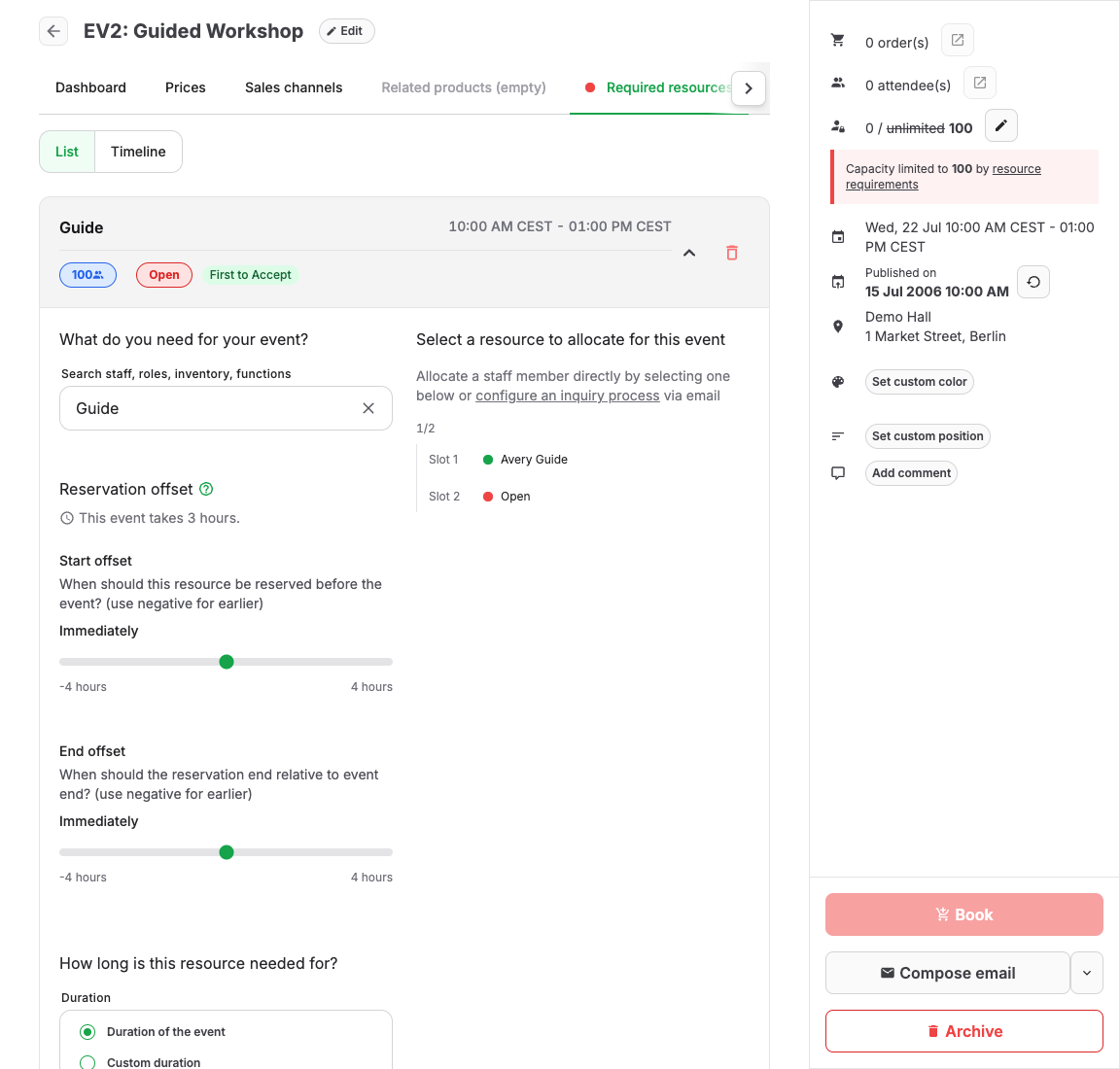
Check:
- whether each requirement has a matching resource or Role / Function
- Quantity
- resource availability at the selected time
- already allocated resources
- inquiry status, such as Open, Inquired, Pending, Accepted, Rejected, or Canceled
- whether the page shows Show capacity blockers or a Capacity diagnostic
Resource limits can make an event unavailable even when event capacity still looks available. A common symptom is an event with capacity remaining but no resource that can cover the selected time.
Check time patterns and generated slots
For event templates and admissions with repeated start times, check the time pattern or schedule setup.
Confirm:
- the selected date is included
- the selected start time is generated
- the start time has not been excluded
- the start time is not in the past
- the sales period is still open
- calendar or time-slot styling is not hiding the date from customers
If the shop says No events available for this date or No times available, compare the customer date with the back-office schedule and account time zone.
Check shop page setup
If the offer is sellable but not visible in the shop, open Shops and select the shop.
Check:
- the shop's Sales channel
- whether the relevant Shop pages are active
- whether the Page Builder page includes an offer list for that offer type
- filters, categories, tags, and page order
- whether the customer is using the expected language and domain
- whether Require staff login is still enabled
Direct links can work differently from shop listings. Test the same path customers use.
If availability changes during checkout
Another customer or sales channel can book the last available places after a customer has selected a date and time. The online shop checks availability again before it adds the booking to the cart.
If the selected date, time, or quantity is no longer available, the shop:
- stops the booking instead of adding an unavailable item to the cart
- explains that the selection is no longer available
- returns the customer to the date or time selection
- refreshes the available dates and times
Select another available date, time, or quantity and continue again. If the shop shows a general retry message instead, retry once. Collect the details listed below if the message appears again.
Check checkout-specific blockers
If the offer can be added to cart but checkout cannot be completed, check:
- required customer fields in Checkout configuration
- attendee questions
- booking questions
- waiver setup
- required legal documents
- mixed-cart checkout policy warnings
- default payment method and offer checkout policy
- payment provider availability
The shop may display errors such as This cart cannot be submitted right now, Some items in your cart require different checkout handling, or Some required information for your order is still missing. Use the error text to decide whether the issue is setup, data collection, or payment.
Check POS-specific setup
If the POS cannot sell the offer, confirm:
- cashier is using the correct POS
- the event is visible for the POS sales channel
- a POS-visible price exists
- the event date or agenda day is correct
- capacity remains for the POS allocation
- required included options can be selected
- the POS can return the item with Add to receipt
POS availability can differ from online shop availability when sales channels or channel capacities differ.
Expected result
The issue is diagnosed when you can name the blocking setting:
- publishing or hidden state
- shop page or navigation setup
- missing sales channel
- missing active price
- sales period
- event capacity
- sales channel allocation
- resource capacity
- generated time slot
- checkout field, waiver, legal, or payment blocker
- POS setup
After changing the setting, the intended date, time, price category, and quantity are available under that setting's configured scope.
