Add deep links from a marketing page
- Last verified
- Last verified Aug 18, 2026
Use this when a website, newsletter, or ad should send customers straight to one offer's booking page instead of the shop home page. A deep link skips browsing and takes the customer directly into date, quantity, and price selection.
Before you start
Confirm:
- the offer is published with prices visible on the Online shop channel
- which domain marketing should link to; if a custom domain is planned, set it up first so links do not need to change later
Get the link to an offer
Each offer has its own page in the shop with an address generated from the offer's name. There is no copy-link button on offers in the back office, so copy the address from the shop itself:
- Open the online shop in a browser.
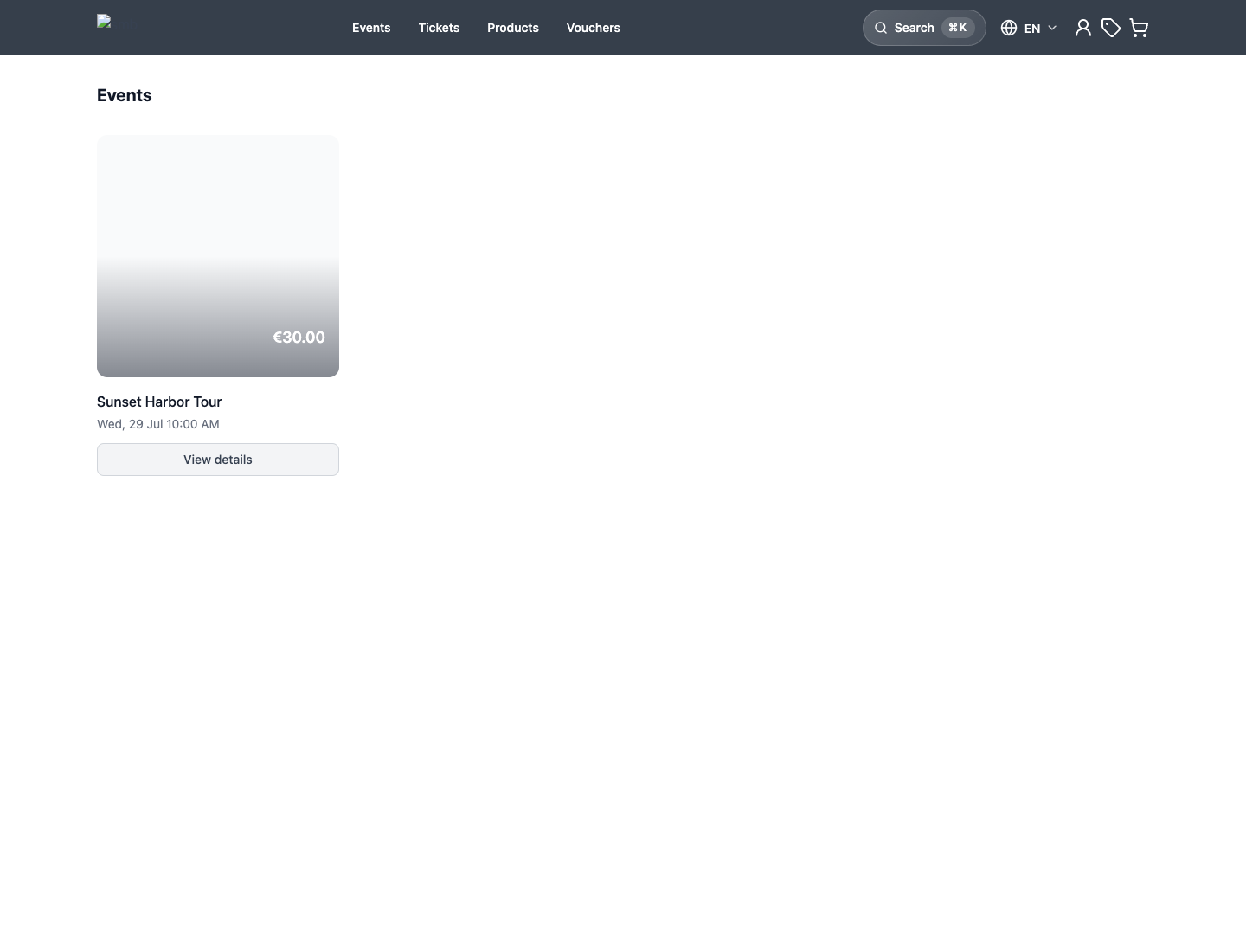
- Navigate to the offer and open its detail page.
- Copy the full address from the browser's address bar and use it as the deep link.
Test the copied link in a private browser window before publishing it, and again after renaming the offer.
Direct links also reach offers whose Hide from shop setting removes them from listings and search — useful for member-only or partner offers. Hiding is not access control: anyone with the link can book. See How sales channels and visibility work.
Shops that use the Page Builder also have a Redirects tab (Shops > your shop > Redirects, where available). Add redirect maps a short Old path such as /summer to the offer's Target path, which gives marketing a stable, friendly link even if the offer page address changes later.
To redirect a whole former section, select Path prefix (matches child paths) under Source match and enter a path such as /old-summer. By default, every matching child path redirects to the same Target path. Select Append the remaining path to the target when the section has moved without changing its internal paths: /old-summer/tickets then redirects to /summer/tickets. Use Exact path when only one address should redirect.
Link to an unlisted landing page
To give a campaign its own page instead of a single offer, build a custom page in the Page Builder and leave Show in navigation off. The page stays out of normal navigation but remains reachable by anyone who has or receives its address; it is unlisted, not access-controlled. See Customize shop page content and ordering.
Add campaign parameters
Append standard UTM parameters to the link, for example:
https://tickets.example.org/summer-tour?utm_source=newsletter&utm_medium=email&utm_campaign=summerThe shop reads utm_source, utm_medium, utm_campaign, utm_term, utm_content, and ad click identifiers such as gclid and fbclid from the landing page address while analytics consent is active. In Consent-managed analytics mode, those values can accompany the shop's ecommerce events under toucantix_booking_event; for example, GTM can inspect toucantix_booking_event.gclid and read toucantix_booking_event.utm_campaign on purchase.
KORONA Event does not send those values to an external analytics or advertising provider automatically. Your tag manager or custom adapter must map the applicable campaign values to the destination, and the visitor must have provided the required consent. For Google Ads, do not map toucantix_booking_event.gclid into a standard website conversion tag; that tag uses click information stored by the site-wide Google tag or applicable Conversion Linker. The exposed gclid is for diagnostics or a separately designed custom or server-side integration. In the default Privacy-preserving mode, no KORONA Event conversion events reach your tag manager. See Configure external analytics and consent.
If a campaign first lands on your main website, preserve the required parameters when linking or redirecting into the shop. When the marketing site and shop use different domains, configure consent-aware cross-domain linking for the Google tag or Conversion Linker on both domains. The shop cannot recover a gclid or UTM value that the main website removes before the visitor reaches the shop, and preserving the raw parameter does not replace Google's cross-domain setup. Campaign context begins only after analytics consent is active, so a choice made after leaving the original campaign URL can result in missing attribution.
Expected result
Customers who follow the marketing link land directly on the offer page, can complete a booking, and campaign parameters are available for attribution within the limits of your consent setup.
Troubleshooting
| Problem | What to check |
|---|---|
| Link shows a not-found page | The offer's publishing state, a renamed offer, or a redirect pointing to an old path. |
| Offer opens but cannot be booked | Prices on the Online shop channel, capacity, and sales period. |
| Campaign missing in analytics | Consent-managed mode, when analytics consent became active, whether the parameters reached the shop landing URL, GTM field mappings, and cross-domain linking when the marketing site and shop use different domains. |
| Hidden offer found by search engines | Hidden offers are excluded from shop listings, but anyone who shares the link can spread it; treat the link as public. |
