Control where an offer is sold
- Last verified
- Last verified Aug 4, 2026
Use this to decide which configured points of sale A configured selling endpoint or order origin. It can represent a till or kiosk, the online shop, or a back-office or telephone ordering flow. can sell an offer, how much capacity each group may use, and when sales open and close.
This article covers the settings on the offer itself. For the full model of why an offer shows up in one place but not another, read How sales channels and visibility work first.
Before you start
Decide:
- which channels should sell this offer
- whether any channel needs a reserved ticket allocation
- whether sales should open immediately or relative to the start time, and whether they should close before, at, or after the start time or stay open until the end
You need permission to update sales channels on offers.
Keep or change the default rule
New offers are available at all configured POSs and use the offer's full remaining capacity by default. You do not need to add separate Online shop, POS, and Back-office entries for a normal launch. The shop uses its assigned POS; manual staff orders use a configured back-office or telephone POS.
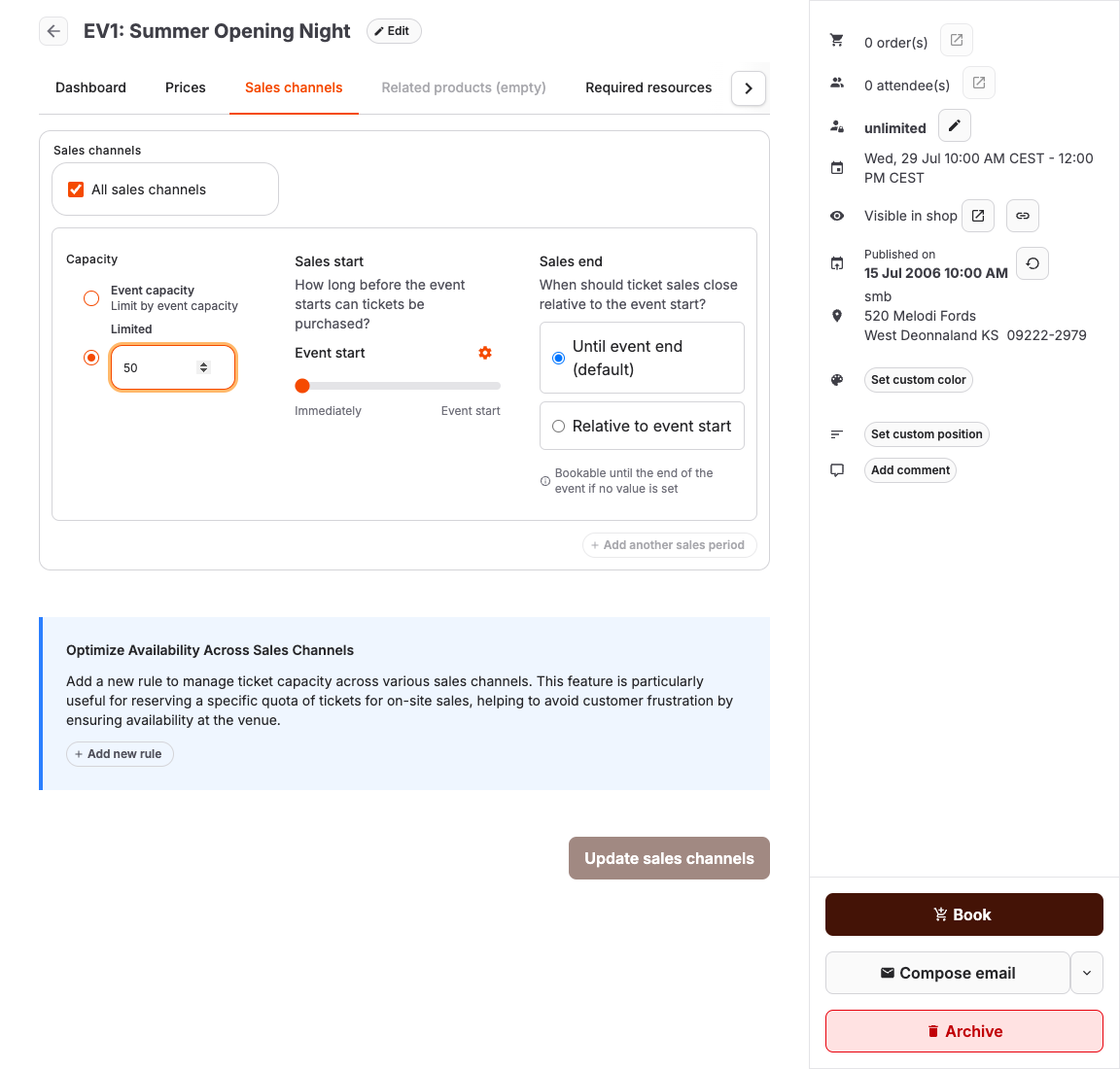
- Open the offer under Services and select the Sales channels tab.
- Select Add sales channel if no rules exist yet, or Add new rule to add another one.
- Under Sales channels, select the POS records this rule applies to. Leave the selection empty when it should apply to all POSs.
- Choose the quantity limit for the rule:
- Event capacity — the rule draws from the offer's remaining capacity.
- Limited — the rule has its own reserved allocation; enter Capacity.
- Unlimited — the rule does not limit sales by participant count. Use with care.
- Select Update sales channels.
Use a Limited rule to reserve tickets for one or more counter POSs so on-site customers still find availability after online sales.
Set when sales open and close
For Sales start, choose one of these modes:
- Immediately (default) adds no start restriction, so tickets can be purchased as soon as the offer and its prices are otherwise sellable. Only the first sales period can use this mode.
- Relative to event start schedules sales to open before or at the event start. Select At event start only when sales must remain closed until the event begins; it is not the same as Immediately (default).
For Sales end, choose one of these modes:
- Until event end (default) or Until admission end (default) keeps sales open for the full offer duration.
- Relative to event start lets you close sales Before event start, At event start, or After event start. Use Custom... for an exact duration such as 30 minutes after the event starts.
Select Add another sales period to give the same channels different quantities over time, for example an early-bird allocation that ends before regular sales. Sales periods are not available for general admissions without start times.
Only the first sales period can start Immediately (default). Only the final sales period can use the default end mode or end after the event starts. Earlier periods must end at or before the event start so the next period has a valid start boundary. If Add another sales period is disabled, set the current Sales end to At event start or an earlier time first.
Remove a rule or sales period
- Select Delete this rule to remove a sales-channel rule and all its sales periods, or Delete this sales period to remove one period from a rule with multiple periods.
- Confirm Remove, or select Cancel to keep the entry.
- Select Update sales channels to save the removal. Confirming the dialog only removes the entry from the form; it does not save the change.
Expected result
The offer can be sold exactly in the selected channels, each channel respects its own allocation, and sales open and close at the configured times.
Troubleshooting
| Problem | What to check |
|---|---|
| Offer is missing from one channel | A sales channel rule for that channel, an active price visible on it, and the publishing state. |
| Offer is missing or sold out before its start | Whether Sales start is At event start instead of Immediately (default). |
| Offer shows but nothing can be bought | Sales start and Sales end values, remaining capacity, and price quantity limits. |
| One channel sold out while another has stock | Whether the rule uses Limited allocation instead of Event capacity. |
| Early-bird quota never ends | The sales period boundaries on the rule and the order of sales periods. |
The concept article linked above explains the full visibility cascade, including publishing, hidden state, and shop pages.
